
Antidisciplinary Project Studio I
Setup Guide
Get your development environment ready for APS-I — from zero to running simulations in your browser.
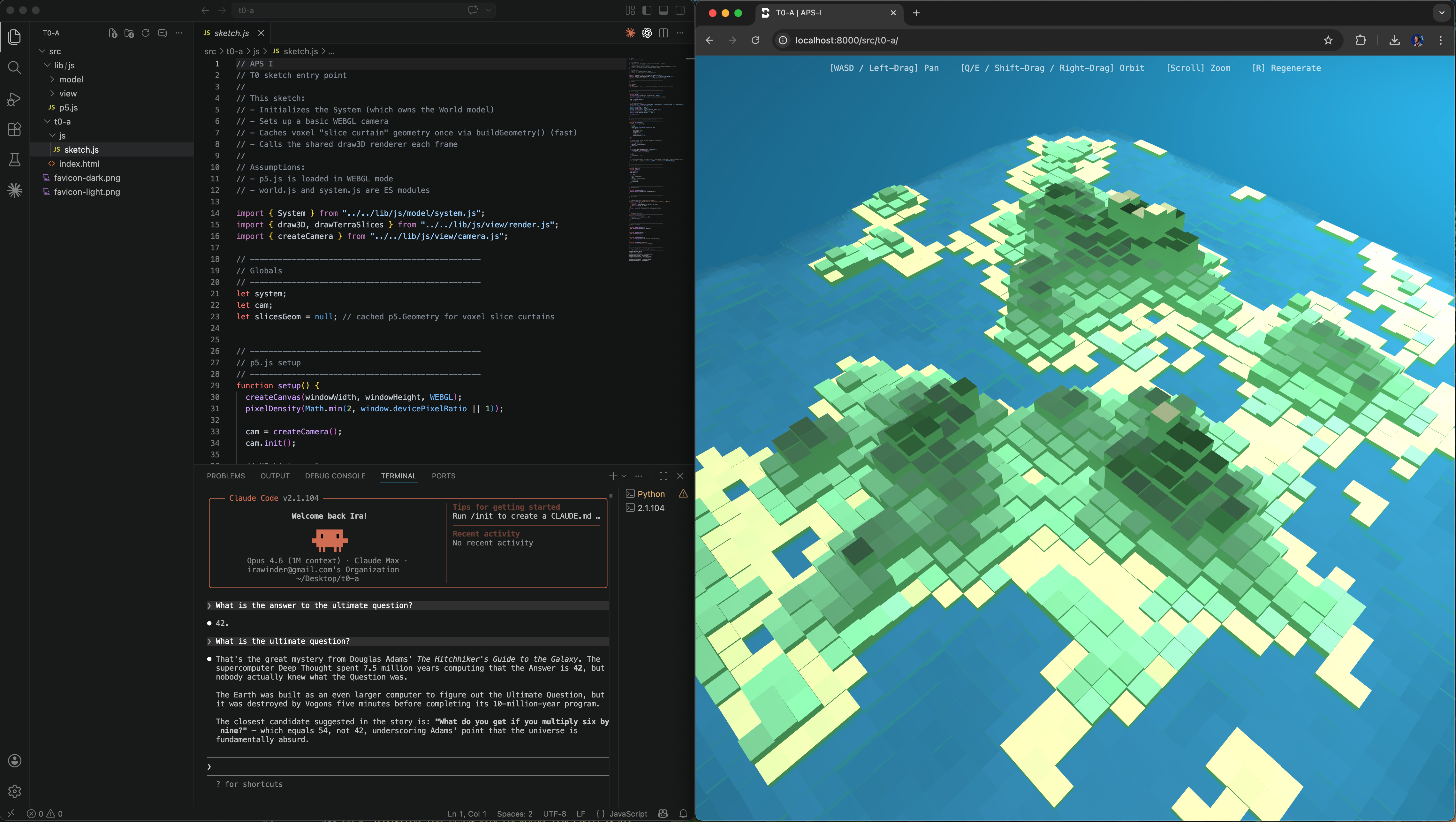
What You'll Set Up
By the end of this guide you will have:
- VS Code — a code editor with a built-in terminal
- Claude Code — an AI coding assistant that runs in the terminal
- A local server — serving course simulations in your browser
No prior coding or terminal experience is required. Each step includes exactly what to click, type, and expect.
VS Code (Visual Studio Code) is a free code editor. We use it because it has a built-in terminal where you can run Claude Code.
- Go to code.visualstudio.com
- Download the installer for your operating system (macOS, Windows, or Linux)
- Run the installer and follow the prompts
- Open VS Code when the installation is complete
The terminal is a text-based interface where you type commands. VS Code has one built in.
- In VS Code, go to the menu bar and click Terminal > New Terminal
- A panel will appear at the bottom of the window — this is your terminal
You can also use the keyboard shortcut:
Press: Control + ` (backtick — the key below Escape)Press: Ctrl + ` (backtick — the key below Escape)You should see a blinking cursor. This is where you'll type all the commands in the following steps.
Claude Code is the AI assistant you'll use throughout this course. Follow the official quickstart guide to install it:
code.claude.com/docs/en/quickstart
The quickstart will walk you through installation and authentication. When you're done, verify it works by typing this in your terminal:
$ claudeYou should see Claude Code start up and display a prompt where you can type a message.
Course modules are downloaded from the course page. Let's grab the first one to test your setup.
- Go to the Course Modules page
- Click the T0-A card
- Enter the download password:
sunfish-42 - A
.zipfile will download - Find the zip file (usually in your Downloads folder) and extract it — you should get a folder called
t0-a
Now open the extracted folder in VS Code so Claude Code can see the project files.
- In VS Code, click File > Open Folder
- Navigate to the
t0-afolder you extracted and select it - Click Open
You should see the project files listed in the sidebar on the left (files like index.html, a js/ folder, etc.).
The simulations run in your browser, but they need a local web server to load properly. Open a new terminal in VS Code (Terminal > New Terminal) and type:
$ python3 -m http.server 8000You should see output like:
Serving HTTP on :: port 8000 (http://[::]:8000/) ...This means the server is running. Keep this terminal open — closing it will stop the server.
python3 isn't recognized, you may need to install Python first.
macOS: Open Terminal and run
xcode-select --install — this installs Python along with other developer tools. Alternatively, download from python.org.
Windows: Download and install from python.org. During installation, check the box that says "Add Python to PATH". After installing, close and reopen VS Code, then try the command again.
With the server running, open your web browser (Chrome or Firefox recommended) and go to:
http://localhost:8000/src/t0-a/You should see the T0-A interactive world model — a 3D terrain that you can rotate and explore.
Now let's make sure Claude Code can see your project. Open a second terminal in VS Code (click the + icon in the terminal panel) and type:
$ claudeClaude Code will start up inside your project folder. Try asking it something like:
> What files are in this project?Claude should list the project files and describe what they do. This is your AI teaching assistant for the course — you'll use it to explore simulations, ask questions about code, and work through assignments.
Pre-Class Checklist
Before our first session, confirm that you can do all of the following:
- Open VS Code and access the terminal
- Run
claudeand start a conversation - Download and extract a module from the course page
- Start a local server with
python3 -m http.server 8000 - View the T0-A simulation at
http://localhost:8000/src/t0-a/
Troubleshooting
"Address already in use" when starting the server
This means port 8000 is already taken. Either stop the other server or use a different port:
$ python3 -m http.server 8080Then visit http://localhost:8080 instead.
The simulation page is blank or shows errors
Make sure you're accessing the page through the local server (http://localhost:8000/src/t0-a/), not by opening the HTML file directly. Opening the file directly (via file://) will block the JavaScript modules from loading.
Claude Code won't authenticate
Email claude@chibatech.dev with a description of the error you're seeing.
Other issues
Bring your laptop to the first class and we'll help you troubleshoot in person.